Dns

steamcache for gaming

Assuming you have docker running at home, check out these two docker projects - one is the cache (powered by nginx), the other is the dns servcie (which intercepts steam calls)

  1. https://hub.docker.com/r/steamcache/steamcache
  2. https://hub.docker.com/r/steamcache/steamcache-dns
  3. https://hub.docker.com/r/steamcache/sniproxy

When you have all three up and running you can confirm HITS to the cache by running the following against the steamcache container;

docker exec -it steamcache tail -f /data/logs/access.log
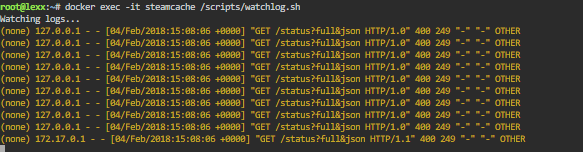
This is great if you have a gaming cafe or LAN over at your house on occasion, all steam games will be cached to local disk so that your internet pipe gets a break. ;)

pc engine - pfsense as router / firewall

download (1)Just built a pfsense router on  a pc engine to replace my aging 7390 fritzbox…. Very very awesome and fast!

Perfect for UFB (ultra fast broadband) here in New Zealand - FTTH has arrived :)

I’m currently running these services on it (2 x 1GHZ cpu, 4GB RAM, 16GB msata SSD);

  • dhcpd - DHCP server
  • miniupnpd - UPnP server
  • ntpd - NTP server
  • squid - Transparent Proxy & Reverse Proxy
  • snort - IDS (Intrusion Detection System) / IPS (Intrusion Prevention System)
  • ssd - SSH server
  • unbound - DNS Server
  • ipsec - IPsec VPN (site to site VPN)
  • openvpn - Open VPN (client VPN)

Check these links for some great advise…

nsswitch.conf SMF config

# svccfg svc:> select dns/client svc:/network/dns/client> setprop config/search = astring: \ (“us.company.com” “eu.company.com” “companya.com” “companyb.com” “company.com” ) svc:/network/dns/client> setprop config/nameserver = net_address: \ ( 138.2.202.15 138.2.202.25 ) svc:/network/dns/client> select dns/client:default svc:/network/dns/client:default> refresh svc:/network/dns/client:default> validate svc:/network/dns/client:default> select name-service/switch svc:/system/name-service/switch> setprop config/host = astring: “files dns” svc:/system/name-service/switch> select system/name-service/switch:default svc:/system/name-service/switch:default> refresh svc:/system/name-service/switch:default> validate svc:/system/name-service/switch:default> # svcadm enable dns/client # svcadm refresh name-service/switch # grep host /etc/nsswitch.conf hosts: files dns # cat /etc/resolv.conf # # opyright (c) 2011, Oracle and/or its affiliates. All rights reserved. #

vmware - HA issues

Most of the time your HA issues are going to be DNS related. So ensure that your vcenter can ping all your hosts by FQDN without issue.  In some cases though a stubborn server may not want to play the game even when everything is configured properly.

This method is considered a “last effort” as you’ll need to run some CLI commands on the ESX box. But i have found it useful in a few situations.

WPAD - Web Proxy Autodiscovery Protocol

When using wpad there are some things that you should take note of;

  • DHCP wpad will override DNS wpad
  • DHCP 252 option can in some cases be slightly slower to resolve than DNS - there may be a patch for WinInet to resolve this.
  • You should always use lower case - wpad.dat  (it is case sensitive)
  • DHCP will allow either a URL or a file location for wpad.dat

Within IE on the LAN settings tab if you have WPAD “automatically detect settings” enabled and also configure a proxy server the WPAD should override the manual proxy configuration.

squid - your transparent proxy friend

Still my favourite light and fast web proxy is Squid. Its very easy to setup and get running on almost all flavours of linux. You can find it here http://www.squid-cache.org/ but will probably find it in your local package manager…

This is for more my own reference… as i don’t think too many people have the need for a transparent proxy. You only need one NIC configured on your VM / machine as its most probably on the same subnet as your dsl etc…

Linux - Add DHCP and DNS

How to install DHCP and DNS on Fedora / Centos / Redhat box;

yum -y install dhcp.i386 bind.i386

Set services to auto start using ntsysv – services are called “dhcpd” and “named”.

How to configure dhcp;

nano /etc/dhcpd.conf — configure as per sample provided. The sample is usually located in the same directory. service dhcpd restart - should start without problem if done correctly

Note: dhcp range has to be on the same network as your adapter. You can run dhcpd from the command line to diagnose any issues.

OpenSolaris - Manual Network DNS issue

If you have tried to setup a manual IP on your opensolaris box you may find that DNS is not working as you would expect in some cases. nslookup resolves the name to an ip, but pinging doesnt make it to the box…

How to fix;

Edit your /etc/nsswitch.conf file and add the word “dns” to the hosts and ipnodes lines If you make a backup of /etc/nsswitch.conf you can also just copy /etc/nsswitch.dns over it…