Storage

unraid smart check - dead WD green drive

errors on unraid GUI - sometimes its a loose cable, sometimes its an issue with the drive.

Run this command to check smart status

smartctl -a -d ata /dev/sda or if you are using a newer SATA controller smartctl -a -A /dev/sda

http://lime-technology.com/wiki/index.php/Troubleshooting

unfortunately in my case, looks like drive is pretty much dead… not too bad for a drive almost 5 years old.

its pretty typical of a WD green drive in its default config to die in this type of environment, no plans to replace it with a similar type drive. You can see below the incredibly high LCC count which indicates the drive header has parked this many times over its life. This is probably part of the problem - there is a tool you can run (check this vid, link for  WDIDDLE3 also in comments - http://www.youtube.com/watch?v=J2eYyRI_F98) which disables the intellipark feature of the green drive. I never disabled the park timeout before this drive died (which defaults to 8 seconds!) – note: i have disabled it completely on my other green drives.

windows 2012 - dedup

If you have some archive data that you would like to copy onto a  win 2012 server, but dont know how to estimate the end volume size (if VM etc). Start small - about 1/2 of the total capacity of the drive. Robocopy the data onto the drive until nearly full, manually run dedupe, wait until complete, continue robocopy, repeat and rinse. There will be occasions where you will run out of disk space at that point its time to extend your disk.

Equallogic - 6.0 Feature List

http://www.dell.com/learn/us/en/04/campaigns/equallogic-software

Features introduced in release 6.0:

• Synchronous Replication • Snapshot Space Borrowing • Volume Unmap • Volume Undelete • Support for SED drives and IPsec

Features you have come to rely on:

• Data Center Bridging • Automatic load balancing • VMware® Thin Provisioning awareness • Auditing of administrative actions • Microsoft® Active Directory integration • Peer storage architecture • Rapid provisioning • Storage pools • Roles-based administration • Thin clones • SAN Data Copy Offload • SAN Zero Offload and Scalable Lock Management for VMware • Intelligent tiering of data across models that combine solid-state drive (SSD) and hard drives • Integration with the VMware® vStorage APIs • Nondisruptive array upgrades • Nondisruptive array removal • Online data and volume movement • Automatic RAID placement • Thin provisioning • Instant volume restore • Multivolume, writable snapshots • Snapshot and point-in-time replication scheduler • Volume cloning • Volume consistency sets • Auto-start disk monitoring system • Email home • Enclosure monitoring system • Performance monitoring

zfs share for Time machine backups

I’ve tried using a share for time machine before, but due to the nature of how time machine works it eventually consumed all the spare space that is available on that particular share.

bring on zfs quotas… (my drive on my mini mac is 100GB, so 200GB should be enough for a few variations)

zfs set quota=200G unprotected/timemachine

This adds a artificial limit to your zfs filesystem, making sure that time machine does not consume more than 200 gigabytes of space.

Why is UNRAID cool for home?

I’ve played with many storage technologies at home, ZFS being one of my favs when it comes to performance. But i’ve been looking for something that suits a typical home environment where power usage and capacity is usually more important than performance. Thats where UNRAID has come in…

UNRAID give me these advantages;

  • Different sized disks in a single pool (only requires largest disk as parity)
  • Files are distributed over all the disks - so even if you lost more than a single drive you still still have some of your data. Note : with parity drive you can handle a single drive failing without loosing anything, sorta like RAID4 - non distributed parity.
  • Power usage, since the files are stored on specific disks not all the disks need to power on to give you your file.
  • Runs on a USB stick - no large operating system required.
  • Crashplan module can be installed to provide backup options.

http://lime-technology.com/

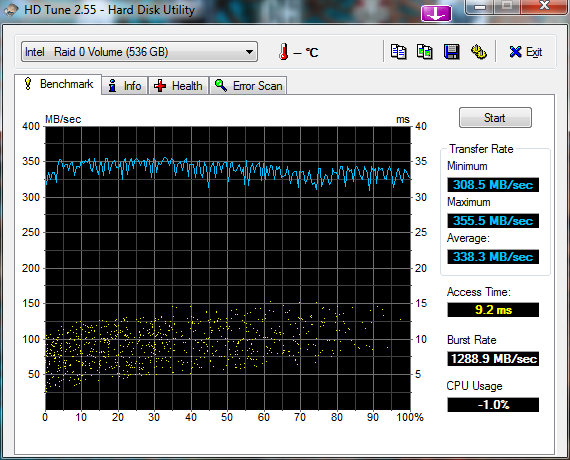
short stroking - v2

I’ve run through this exercise again - my old findings here

4 x 500 WD Black drives – in one big RAID 0 (128K blocks)

and again only using 500GB of capacity (roughly 1/4 of each of the drives)

P4000 / Lefthand - v9.5 feature list

The 9.5 release is a comprehensive release that includes enhancements in the following areas:

  • Application managed snapshots for VMware ESX Server and Microsoft Hyper-V Server
  • SAN Status Home Page — the SAN Status home page is the new home page for the CMC and presents key information for all management groups in the storage environment in a single view.
  • Zero to VSA automated installation and deployment — Single installer can install VSA, FOM and CMC. Go from “zero” to a fully functional virtual SAN in just a few easy steps. Scriptable install tool allows ROBO customers to script install once and deploy VSA quickly at multiple remote locations.
  • Peer Motion data mobility with cluster swap — Cluster swap allows users to replace or upgrade P4000 clusters. Edit cluster menu guides decisions about adding, removing, or exchanging storage systems. Easily migrate data online between tiers.
  • Remote Copy performance improvements — Improvements to remote copy times, the time required to scan volumes, ability to support more frequent snapshots, reduction of RPOs for DR solutions.
  • Storage Replication Adapter for Vsphere Site Recovery Manager 5.x — Supports automated failback and is included on the HP P4000 Application Integration Solution Pack
  • Best Practice configuration wizards — Configuration wizards guide towards highest availability configurations: add Failover Manager for 2–node configuration, configure disk RAID 6 for single-node configurations, recommends volume replication when expanding clusters to more than one storage system

allow root ssh login solaris 11 express


Change SSHD to allow root login;

vi /etc/ssh/sshd_config PermitRootLogin = yes

Allow remote logon for root user, comment out the following line;

vi /etc/default/login **

#CONSOLE =/dev/login

**

rolemod -K type=normal root

solaris - storage server

http://p2v.it/2010/04/15/a-next-generation-multiprotocol-storage-for-your-homelab-on-a-budget-part-1/

Setup iSCSI target using comstar – pkg install -v storage-server pkg install pkg:/SUNWiscsit svcadm enable stmf svcadm enable svc:/network/iscsi/target:default itadm create-target reboot – -r

Create the iSCSI store — zfs create -V 100G DataPool/TestDatastore1 sbdadm create-lu /dev/zvol/rdsk/DataPool/TestDatastore1 stmfadm create-hg ESX4-group stmfadm add-hg-member -g ESX4-group wwn.2100001b329711bd wwn.2101001b32b711bd stmfadm add-view -h ESX4-group -n 0 600144F03EBEC50000004BA86E460001 stmfadm list-lu -v

enable TRIM in windows 7

This command will confirm if TRIM has been auto-enabled by windows 7

fsutil behavior query disabledeletenotify

DisableDeleteNotify = 1 (Windows TRIM commands are disabled) DisableDeleteNotify = 0 (Windows TRIM commands are enabled)

If you would like to force it on;

fsutil behavior set disabledeletenotify 0

P4000 / Lefthand and Windows DSM (MPIO)

Steps to setup MPIO round robin and DSM with P4000 / Lefthand nodes

This example is windows 2008 with 2 x 1gbit nics

  1. Install HP DSM driver onto windows 2008  (this should also install MPIO feature on windows 2008)
  2. Setup 2 x IP’s on windows host - storage subnet (used with MPIO)
    1. Confirm you can ping target from both (enable one at a time - ensure there is no routing on your other nics)
  3. Provision storage and allow server read / write access to windows server (via initiator name)
  4. Open iSCSI on windows 2008
  5. Put in IP of target in discovery tab
  6. On first tab confirm that iSCSI drive is presented to host
  7. Click “connect” - check both auto-connect and use MPIO
    1. click advanced - chose MS iSCSI initiator, choose first IP and target IP. Click o.k. / o.k
    2. click advanced - chose MS iSCSI initiator, choose second IP and target IP. Click o.k. / o.k
    3. Repeat above per additional Nic
  8. Confirm via “devices” that there is x (as many targets as nics) targets per disk
    1. Within devices choose MPIO - change from vendor specific to “round robin”
      1. Note : read / write access to LUN is required when using “round robin” MPIO opposed to the default “vendor specific” which works with read only access. Else you will get an error - “not supported”
    2. Repeat above per “device”
  9. Confirm on Lefthand / P4000 CMC that the LUN has one connection per initiator Nic, and that each connection also has its DSM children (visible in CMC if working).

Confirm that the connection are as expected…

zfs : accidentally adding cache drive to raidz zpool

http://forums.freebsd.org/showthread.php?t=23127

Unfortunately if you have accidentally added a single drive into your raidz pool at the top-level there is no way to just remove the non redundant disk. Your pool is now dependant on this disk.

If you want your pool to be just raidz vdevs, then you will need to backup your data, destroy your pool, create a new pool, and restore your data.

There is no current way to remove a top-level vdev from a pool.

vmware - finding orphaned files

Use following script for finding orphaned files in your vmware env…

# # Purpose : List all orphaned vmdk on all datastores in all VC's # Version: 1.1 # Author : HJA van Bokhoven # Modifications: LucD

$arrayVC = @(“server”) $report = @()

foreach ($strVC in $arrayVC) { Connect-VIServer $strVC $arrUsedDisks = Get-View -ViewType VirtualMachine | % {$_.Layout} | % {$_.Disk} | % {$_.DiskFile} $arrDS = Get-Datastore | Sort-Object -property Name foreach ($strDatastore in $arrDS) { Write-Host $strDatastore.Name $ds = Get-Datastore -Name $strDatastore.Name | % {Get-View $_.Id} $fileQueryFlags = New-Object VMware.Vim.FileQueryFlags $fileQueryFlags.FileSize = $true $fileQueryFlags.FileType = $true $fileQueryFlags.Modification = $true $searchSpec = New-Object VMware.Vim.HostDatastoreBrowserSearchSpec $searchSpec.details = $fileQueryFlags $searchSpec.matchPattern = "*.vmdk" $searchSpec.sortFoldersFirst = $true $dsBrowser = Get-View $ds.browser $rootPath = "["+$ds.summary.Name+"]"

Celerra - Unable to create, refresh, or delete checkpoint of a replicated destination file system

I’ve been stuck with this error recently on a Celerra manager device : DpRequest_Max_VS_SuspendedCheckpointsReached

This can sometimes happen when a filesystem is held during a replication task. To check what filesystems are currently being replcated run the following command;

nas_replicate -info -all

Either wait until the replication has completed - check status. Or temporary stop the replication task (stop it from the source side if possible).

EMC Celerra Optimizations for VMware on NFS

go here http://blog.scottlowe.org/2010/01/31/emc-celerra-optimizations-for-vmware-on-nfs/

Turn on the uncached write mechanism for NFS file systems used as VMware datastores. This can have a significant performance improvement for VMDKs on NFS but isn’t the default setting. From the Control Station, you can use this command to turn on the uncached write mechanism: server_mount <data mover name> -option <options>,**uncached** <file system name> <mount point> Be sure to review pages 99 through 101 of the VMware on Celerra best practices document for more information on the uncached write mechanism and any considerations for its use.

vmware and load balancing NFS trunks

Straight from the post below, this is the best way (currently) to load balance your NFS datastores…  No MPIO magic here unfortunately.

http://communities.vmware.com/message/1466595#1466595

Basically you can setup IP alias on the NFS side and then setup multiple connections (using a unique IP) per datastore  on each ESX host. This works well if you are using a team of nics running IP-hash load balancing…

Static EtherChannel.

My setup is as follows:

ESXi 4.0 U1, Cisco 3750 Switches, and NetApp NFS on the storage side.

I have a total of 8 nics. I divided the nics into 3 groups.

2 nics on vSwitch0 for Mgmt & vMotion 3 nics on vSwitch1 for VM’s (Multiple port groups (3 VLANS)) 3 nics on vSwitch2 for IP Storage (Mostly NFS, a little iSCSI) (One vSwitch3 I also have a VM port group for iSCSI access from within the VM)

Since I have 3 nics on my IPStorage port group I needed a way to be able to utilize all three nics and not have the server just use one for ingress and egress traffic. This was done by:

Setting up a static EtherChannel on the cisco switch (Port Channel). Configuring the cisco switch to IP Hash Configure the vSwitch to “Route based on IP Hash” as well.

The next part is to create multiple datastores on the NFS device. Each of my NFS datastores is about 500GB in size. Reason for this is that my larger luns are iSCSI and are access directly from the VM using the MS iSCSI initiator from the VM itself. My NetApp NAS has an address of, let say, 192.168.1.50. So all my data stores are accessible by utilizing the address of “\\192.168.1.50\NFS-Store#”. This will not be useful as the esx box and the cisco switch will always use the same nic/port to access the nas device. This is due to the algorithm (IP HASH) to decide what link it’ll go over. So to resolve the issue, I added IP aliases to the NFS box. NetApp allows to have multiple Ip addresses pointing to the same NFS export, I suspect EMC would do the same. So, I added 2 aliases 51 & 52. Now my NFS datastores are accessible by using Ip address 192.168.1.50,.51, & .52.

So I went ahead and added the datastores to the ESX box using the multiple IP addresses:

Datastore1 = \\192.168.1.50\NFS-Store1 Datastore2 = \\192.168.1.51\NFS-Store2 Datastore3 = \\192.168.1.52\NFS-Store3

If you have more datastores it’ll just repeat: Datastore4 = \\192.168.1.50\NFS-Store4 and so on…

Since having multiple datastores and address to each, the 3 nics on the ESX box dedicated to IP Storage get utilized. It does not aggregate the bandwidth but it does use all three to send and recieve packets. So the fastest speed you will get is 1Gbit, theoretically, each way for traffic but, it is better than trying to cram all the traffic over 1 nic.

I also enabled Jumbo Frames on the vSwitch as well as the vmNic for IP-Stroage. (need the best performance!) I should mention that your NFS storage device should have EtherChannel setup on it as well. Otherwise, you’ll be on the same boat just on the other end of it.

Hope it helps!

Larry B.

I should mention that you should not use different addresses to access the same NFS share (datastore). It is not supported and may cause you issues.

vmware srm - replicating over a wan - optimizations

I’ve been working through a SRM setup and have been looking at ways to optimize the amount of traffic that is sent over the WAN. The first obvious move is to move your vmware swap files off the replicated LUNS.

Another way is to reduce the sync window. i.e. how often is yoru replication technology trying to keep the source and destination in sync? – Increasing this window can sometimes help you out. But that all depends on your delta’s.

4k sector hard drives and zfs

I hit this as a problem recently. One of my disks died in my raidz so i ran down to the store and grabbed me a replacement WD10EARS (Western Digital 1Tb Green) drive.

BUT…

The one thing the store didn’t mention to me is the new 4K cluster sizing on the drive. I guess they assume most people run windows (though the issues are also present in XP). See these posts…