Zfs

zfs share for Time machine backups

I’ve tried using a share for time machine before, but due to the nature of how time machine works it eventually consumed all the spare space that is available on that particular share.

bring on zfs quotas… (my drive on my mini mac is 100GB, so 200GB should be enough for a few variations)

zfs set quota=200G unprotected/timemachine

This adds a artificial limit to your zfs filesystem, making sure that time machine does not consume more than 200 gigabytes of space.
Why is UNRAID cool for home?

I’ve played with many storage technologies at home, ZFS being one of my favs when it comes to performance. But i’ve been looking for something that suits a typical home environment where power usage and capacity is usually more important than performance. Thats where UNRAID has come in…

UNRAID give me these advantages;

  • Different sized disks in a single pool (only requires largest disk as parity)
  • Files are distributed over all the disks - so even if you lost more than a single drive you still still have some of your data. Note : with parity drive you can handle a single drive failing without loosing anything, sorta like RAID4 - non distributed parity.
  • Power usage, since the files are stored on specific disks not all the disks need to power on to give you your file.
  • Runs on a USB stick - no large operating system required.
  • Crashplan module can be installed to provide backup options.

http://lime-technology.com/

solaris - storage server

http://p2v.it/2010/04/15/a-next-generation-multiprotocol-storage-for-your-homelab-on-a-budget-part-1/

Setup iSCSI target using comstar – pkg install -v storage-server pkg install pkg:/SUNWiscsit svcadm enable stmf svcadm enable svc:/network/iscsi/target:default itadm create-target reboot – -r

Create the iSCSI store — zfs create -V 100G DataPool/TestDatastore1 sbdadm create-lu /dev/zvol/rdsk/DataPool/TestDatastore1 stmfadm create-hg ESX4-group stmfadm add-hg-member -g ESX4-group wwn.2100001b329711bd wwn.2101001b32b711bd stmfadm add-view -h ESX4-group -n 0 600144F03EBEC50000004BA86E460001 stmfadm list-lu -v

zfs : accidentally adding cache drive to raidz zpool

http://forums.freebsd.org/showthread.php?t=23127

Unfortunately if you have accidentally added a single drive into your raidz pool at the top-level there is no way to just remove the non redundant disk. Your pool is now dependant on this disk.

If you want your pool to be just raidz vdevs, then you will need to backup your data, destroy your pool, create a new pool, and restore your data.

There is no current way to remove a top-level vdev from a pool.

4k sector hard drives and zfs

I hit this as a problem recently. One of my disks died in my raidz so i ran down to the store and grabbed me a replacement WD10EARS (Western Digital 1Tb Green) drive.

BUT…

The one thing the store didn’t mention to me is the new 4K cluster sizing on the drive. I guess they assume most people run windows (though the issues are also present in XP). See these posts…

zfs - now has dedup!

Cool. zfs as of version 21 has deduplication built in. And thats the good dedup - synchronous dedup. i.e. deduped on the fly!

How easy is it to turn on? - very!

Once you have upgraded your zpool to 21 or above you can run the following command at the pool level and deduplication will be over all your data from that point onwards.

zpool set dedup=on tank

Done

Note : Watch your performance, it will drop like a rock if you do not have enough ram for your dedup tables. Do some tests after enabling this feature.

OpenSolaris - iSCSI

Want iSCSI in opensolaris?

Grab SUNWiscsitgt via package manager.

enable the server via svcadm;

svcadm enable iscsitgt

create your zfs iscsi pool;  (this command will limit iscsi drive to 500GB in size)

zfs create -V 500G tank/iscsi

set isci on via zfs command;

zfs set shareiscsi=on tank/iscsi

check that target is up and running;

iscsitadm list target -v

Done. Should be able to connect via ip from another machine. I have not covered CHAP or any client side configuration. Assumed isolated LAN.

Opensolaris - ZFS recovery after kernel panic

Recently i hit what i thought was a huge disaster with my ZFS array. Essentially i was unable to import my zpool without causing the kernel to panic and reboot. Still unsure of the exact reason, but it didn’t seem to be due to a hardware fault. (zpool import showed all disks as ONLINE)

When i tried to import with zpool import -f tank the machine would lockup and reboot (panic).

opensolaris - zfs PCI-e sata controller

Time for me to add some more sata ports to my opensolaris build. I’ve been using the SI 3114 PCI cards  (4x sata) up until now without any issue, but they are limited by the bandwidth on the PCI slot. Time to upgrade and boost my performance.

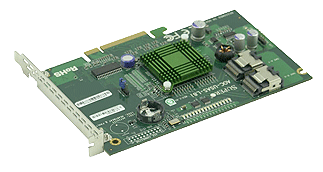
At the moment i’m looking at grabbing one of these UIO cards;

AOC-USAS-L8i

http://www.supermicro.com/products/accessories/addon/AOC-USAS-L8i.cfm

From what iv’e been reading these cards will work fine in a PCI-e slot (8x / 16x) after a bit of modding and display the drives straight to opensolaris without any additional drivers etc. (same chipset used in various sun servers)

zfs compression and latency

Since im using ZFS as storage via NFS for my some of my vmware environments i need to ensure that latency on my disk is reduced where ever possible.

There is alot of talk about ZFS compression being “faster” than a non-compressed pool due to less physical data being pulled off the drives. This of course depends on the system powering ZFS, but i wanted to run some tests specifically on latency. Throughput is fine in some situations, but latency is a killer when it comes to lots of small reads and writes (in the case of hosting virtual machines)

OpenSolaris - Samba server

Time to share your newly created ZFS volume via samba to your windows clients.  There is some CIFS / SMB support built into the kernel now, but i’ve grown used to the SMB server…

Fire up add software - click filesystems - enable filter for “smb”, there are three packages generally. I get all three, but you only need the kernel update and the server package. The other is the SMB client.

Opensolaris : Citrix XenServer / ESX - Hooking into ZFS

To share your zfs pool via NFS (that works with Citrix Xen / ESX) to a host called “esxhost”;

zfs set sharenfs=rw,nosuid,root=esxhost tank/nfs

Note : You MUST have a resolvable name from the opensolaris box. i.e. you should be able to ping it. I have tried with ip’s only and it will fail. I have edited the /etc/hosts file to include the following line for my config;

# Copyright 2007 Sun Microsystems, Inc. All rights reserved. # Use is subject to license terms. # # ident “%Z%%M% %I% %E% SMI” # # Internet host table # 192.168.9.120 esxhost

opensolaris / zfs - whitebox build

I’ve built a little server for home use, but it pales in comparison to this beast… This type of setup would be perfect for a lab / test environment that requires lots of fast and reliable disk. SCSI drives are fading out, SATA can perform if its setup right. When you look at the price of the entire build you wonder why corporations continue to spend the big bucks on the big storage names.

zfs - playing with various configs

If you dont have the disks available to build up a zpool and have a play with zfs you can actually just use files created with the mkfile command… The commands are exactly the same.

mkfile 64m disk1

mkfile 64m disk2

mkfile 64m disk3

mkfile 10m disk4

mkfile 100m disk5

mkfile 100m disk6

Now you can create a zpool using the above files… (i’m using raidz for this setup)

zpool create test raidz /fullpath/disk1 /fullpath/disk2 /fullpath/disk3

Flashing si3114 to sata only bios

This is the perfect controller for adding additional sata drives into opensolaris (well in terms of price, the bandwidth of the PCI slot is the only negative part). The si3114 comes with the default bios that supports various raid configs, but this requires additional drivers to be loaded.

Essentially the “raid” on the card is called fakeraid as it does not actually process any data itself, but hooks into the cpu via a driver and lets your cpu do all the work.

Opensolaris - where has my memory gone?

Use this command in 2008.11 to get details on where your memory is currently being used…

echo ::memstat | pfexec mdb -k

Page Summary                Pages                MB  %Tot ————     —————-  —————-  —- Kernel                     263992              1031   34% ZFS File Data               91917               359   12% Anon                       376867              1472   48% Exec and libs               11484                44    1% Page cache                   3387                13    0% Free (cachelist)             9766                38    1% Free (freelist)             24807                96    3%

Total                      782220              3055 Physical                   782219              3055

zfs - java management gui

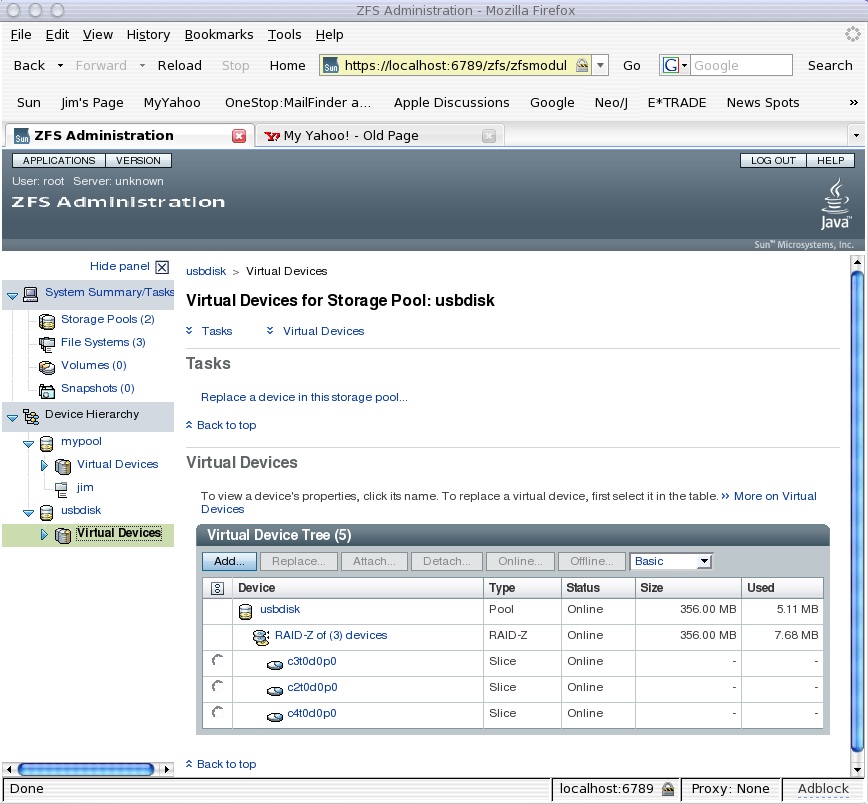
It hasn’t made it into opensolaris yet. But from what i’ve heard it should be making an appearance over from the solaris 10 OS soon. Here is a screenshot of what it looks like…

zfsscreenshot

Should make managing zfs a bit easier - though its already quite easy.  Perhaps if you have quite alot of zpools / zfs file systems it will look prettier.   ;)

Troubleshooting - Time Slider (zfs snapshots)

1. snapshot complains about no access to cron

This problem i came across was after i was playing with crontab. It looks like the zfs snapshot service uses an account called “zfssnap” and if it doesnt have access to cron then it will have issues creating / checking snapshots. Check the file /etc/cron.d/cron.allow and ensure that “zfssnap” is in there. The issues i had looked like this in the log…   (check the logs via the log file viewer)

zfs - checking your zpool throughput

This is quite a good diagnostic for checking your disk throughput. Try copying data to and from your zpool while your running this command on the host…

zpool iostat -v unprotected 2

capacity     operations    bandwidth
pool         used  avail   read  write   read  write
----------  -----  -----  -----  -----  -----  -----
unprotected  1.39T   668G     18      7  1.35M   161K
c7d0       696G   403M      1      2  55.1K  21.3K
c9d0       584G   112G      8      2   631K  69.3K
c7d1       141G   555G      8      2   697K  70.0K
----------  -----  -----  -----  -----  -----  -----

The above command will keep displaying the above output every 2 seconds (average during that time). I’ve used it a few times to ensure that all disks are being used (in write operations) where needed. Of course read op’s may not be typically across all disks as it will depend where the data is…